Image Annotator MCP: Professional Screenshot Annotations for AI Workflows

Creating documentation, tutorials, and bug reports often requires annotated screenshots. But manually adding markers, arrows, and callouts in image editors is time-consuming and breaks your workflow. Every time you need to annotate a screenshot, you have to switch contexts, open an image editor, add annotations, save the file, and then continue with your actual work. Enter Image Annotator MCP – a professional Model Context Protocol server that lets Claude annotate screenshots programmatically with stunning, professional results.
See It In Action
Here is a real example of what Image Annotator MCP can do. On the left is a raw screenshot, and on the right is the same screenshot after applying annotations programmatically:
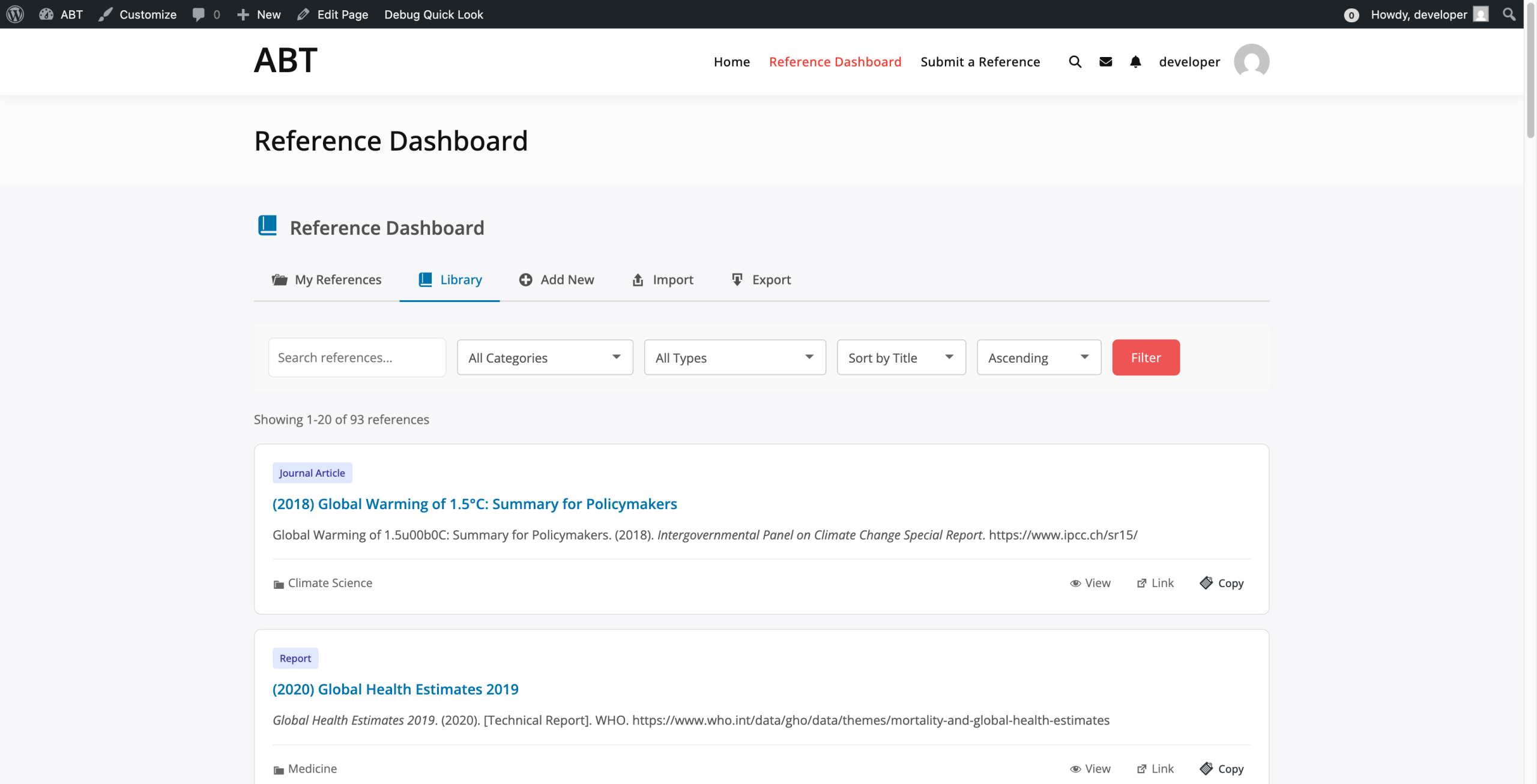
The annotations were applied automatically using a single tool call. No Photoshop, no Figma, no manual editing – just describe what you need and Claude handles the rest.
The Problem with Traditional Screenshot Annotation
If you have ever written technical documentation, created tutorials, or filed detailed bug reports, you know the pain of screenshot annotation. The process typically looks something like this: you take a screenshot, open Photoshop or Figma, add numbered markers, draw arrows pointing to UI elements, add callout boxes with explanatory text, and then export the final image. This process takes anywhere from 5 to 15 minutes per screenshot, depending on complexity.
For a typical documentation project with 20 screenshots, you are looking at several hours of repetitive work. And if the UI changes? You have to redo everything from scratch. This is not a sustainable workflow for modern development teams that need to move fast while maintaining quality documentation.
The traditional approach also suffers from consistency issues. Different team members use different annotation styles, colors, and marker sizes. Documentation created by one person looks different from documentation created by another. This inconsistency makes your product look unprofessional and can confuse users.
What is Image Annotator MCP?
Image Annotator MCP is a Model Context Protocol (MCP) server that enables AI assistants like Claude to add professional annotations to screenshots programmatically. Instead of opening Photoshop or Figma, you simply describe what you want annotated, and Claude does the rest. The annotations are applied with pixel-perfect precision, consistent styling, and professional-quality output.
The MCP server uses the Sharp image processing library under the hood, which is the same library used by leading image optimization tools. This means your annotated screenshots are high-quality, optimized for file size, and render correctly across all platforms and devices.
What makes Image Annotator MCP special is its integration with the broader MCP ecosystem. When combined with Playwright MCP for browser automation, you can create fully automated documentation workflows that capture screenshots and annotate them with zero manual intervention. If you are interested in how AI tools can help with your website, check out how to notify AI tools to crawl your website.
Key Features That Set It Apart
- 10 Annotation Types: From simple numbered markers to complex callouts and connectors, the server supports all the annotation types you need for professional documentation
- Professional Styling: Gradient markers with soft shadows, properly antialiased arrows, and text that renders crisply at any size
- Pre-built Themes: Four professionally designed themes (Documentation, Tutorial, Bug Report, Highlight) ensure your annotations look polished and consistent
- 20+ Color Options: From basic colors like red and blue to semantic colors like success, warning, error, and info – choose colors that match your brand or convey meaning
- Playwright Integration: Works seamlessly with Playwright MCP for accurate element positioning based on actual DOM coordinates
- Batch Processing: Annotate multiple screenshots in a single operation for maximum efficiency
- Retina Support: Properly handles high-DPI displays with 2x scaling for crisp annotations on modern screens
The Complete Annotation Type Reference
Image Annotator MCP supports 10 distinct annotation types, each designed for specific use cases. Understanding when to use each type will help you create more effective documentation.
1. Markers – Numbered Step Indicators
Markers are the most common annotation type. They display as numbered circles (1, 2, 3…) with professional gradient styling and soft shadows. Use markers to indicate steps in a process or to reference numbered items in accompanying text. Markers support sizes from 16 to 48 pixels and work with all available colors.
2. Arrows – Direct Pointers
Straight arrows point from one location to another, drawing the viewer’s attention to a specific element. Arrows support customizable stroke widths, head sizes, and colors. They are ideal for pointing to buttons, form fields, or menu items.
3. Curved Arrows – Elegant Connectors
When a straight arrow would cross over important content, curved arrows provide an elegant alternative. They arc smoothly around obstacles while still clearly indicating direction. The curve intensity can be adjusted to match your layout needs.
4. Callouts – Speech Bubbles
Callouts are text boxes with pointers, similar to comic book speech bubbles. They allow you to place explanatory text near an element while clearly indicating what the text refers to. Pointer direction (top, bottom, left, right) can be configured to avoid overlapping with other content.
5. Rectangles – Area Highlights
Rectangle annotations draw attention to a specific region of the screenshot. They can be solid, dashed, or semi-transparent depending on your needs. Common uses include highlighting a section of a form, a toolbar, or a panel.
6. Circles – Circular Highlights
Circles work similarly to rectangles but are better suited for highlighting buttons, icons, or other circular UI elements. They can also be used to emphasize a focal point without the hard edges of a rectangle.
7. Labels – Simple Text Annotations
Labels are text annotations without pointer arrows. They are useful for adding notes, warnings, or explanatory text that does not need to point to a specific element. Labels support optional background colors for better readability.
8. Highlights – Semi-Transparent Overlays
Highlight annotations create semi-transparent colored overlays over a region. They are less visually intrusive than rectangles and work well for drawing subtle attention to an area without obscuring the content beneath.
9. Blur – Privacy Protection
The blur annotation type applies a Gaussian blur to a rectangular region, obscuring sensitive information like email addresses, passwords, API keys, or personal data. This is essential for creating documentation that can be shared publicly without exposing private information.
10. Icons – Status Indicators
Icon annotations display predefined symbols like checkmarks, X marks, warning triangles, info circles, or question marks. They are perfect for indicating success, failure, warnings, or points that need attention without cluttering the screenshot with text.
Real-World Use Cases
Image Annotator MCP is designed for real-world workflows. Here are the most common scenarios where it shines.
Technical Documentation and User Guides
When writing documentation for WordPress plugins, themes, or any software product, screenshots with numbered markers and callouts make instructions dramatically clearer. Users can follow along step by step without guessing which button to click or which field to fill in.
With Image Annotator MCP, Claude can automatically add numbered steps to any UI screenshot. You provide the coordinates of the elements and Claude generates professional annotations that match your documentation style. When the UI changes, you simply update the coordinates and regenerate the annotations – no manual editing required.
Bug Reports and Issue Tracking
Bug reports are vastly more useful when they include annotated screenshots. Instead of writing lengthy descriptions of where a bug appears, you can annotate the screenshot directly. Use red circles to highlight the problem area, add callouts explaining what is wrong, and blur any sensitive data before attaching the screenshot to your issue tracker.
This approach saves time for everyone involved. Developers can immediately see what the issue is without having to reproduce it first. QA testers can verify fixes more easily. Product managers can understand the severity at a glance.
Tutorial Videos and Online Courses
Creating professional slides for video tutorials requires consistent, polished visuals. The numbered markers with gradient styling look high-quality and professional – perfect for Udemy courses, YouTube tutorials, or internal training materials.
Image Annotator MCP enables you to create hundreds of annotated slides with consistent styling. Because the annotations are generated programmatically, you can easily update them when the software being demonstrated changes.
Design Reviews and Feedback
When reviewing designs with your team, adding callouts with feedback directly on the screenshot eliminates ambiguity. Use connectors to link related elements and icons to indicate approval or issues. The visual feedback is far more effective than writing comments in a separate document.
Customer Support
Support teams can use annotated screenshots to provide clearer guidance to customers. Instead of writing complex instructions, a support agent can annotate a screenshot showing exactly what the customer needs to do. This reduces back-and-forth and resolves issues faster.
The Six MCP Tools
Image Annotator MCP exposes six specialized tools through the Model Context Protocol. Each tool is designed for a specific workflow.
| Tool | Purpose | When to Use |
|---|---|---|
annotate_screenshot |
Add multiple annotations of any type to an image | Complex annotations with multiple elements |
get_image_dimensions |
Get width, height, and format of an image | Before annotating, to calculate coordinates |
create_step_guide |
Automatically create numbered step-by-step guides | Documentation with sequential steps |
highlight_area |
Quick highlight with shape and optional label | Simple annotations that need one highlight |
add_callout |
Add a speech bubble pointing to a location | Single explanatory text annotation |
blur_area |
Blur sensitive information in a rectangular area | Privacy protection before sharing |
Integrating with Playwright MCP
The real power of Image Annotator MCP emerges when combined with Playwright MCP for browser automation. This combination enables fully automated documentation workflows.
The Complete Workflow
Here is how a typical automated documentation workflow looks:
- Navigate: Use Playwright MCP to open the page you want to document. This could be your application’s login page, dashboard, or any feature you need to explain.
- Take Screenshot: Capture the page state with
browser_take_screenshot. The screenshot is saved to a specified path. - Get Element Positions: Use
browser_evaluateto get the exact bounding boxes of UI elements. This gives you pixel-perfect coordinates for your annotations. - Scale for Retina: If the screenshot was taken at 2x resolution (common on Mac), multiply all coordinates by 2 to match the actual image dimensions.
- Annotate: Call Image Annotator MCP’s
annotate_screenshottool with the coordinates you collected. Add markers, callouts, arrows, and highlights at the exact positions of the UI elements. - Share: Upload the annotated image to Basecamp with
basecamp_comment_with_file, attach it to a GitHub issue, or include it in your documentation.
This workflow produces documentation screenshots with annotations that point exactly to the right elements – not approximately, but precisely. The markers appear centered on buttons, arrows point to the correct fields, and callouts reference the intended elements.
Getting Element Coordinates
The key to accurate annotations is getting accurate coordinates. With Playwright MCP, you can use JavaScript to query element positions directly from the DOM:
// Example: Get bounding box of a button
const rect = document.querySelector('[role="button"]').getBoundingClientRect();
// Returns: { x: 120, y: 340, width: 100, height: 40 }

// Center point for a marker
const centerX = rect.x + rect.width / 2;
const centerY = rect.y + rect.height / 2;
For Retina displays (2x scale), multiply these coordinates by 2 before using them with Image Annotator MCP.
Installation and Configuration
Getting started with Image Annotator MCP is straightforward. The server runs locally and integrates with Claude Desktop or any MCP-compatible client.
Prerequisites
Before installing, ensure you have:
- Node.js version 18 or later installed
- An MCP-compatible client like Claude Desktop or Claude Code CLI
- Basic familiarity with the command line
Step 1: Clone the Repository
git clone https://github.com/vapvarun/image-annotator-mcp.git
cd image-annotator-mcp
Step 2: Install Dependencies
npm installThis installs all required dependencies including Sharp for image processing.
Step 3: Configure Claude Desktop
Add the server to your Claude Desktop configuration file:
{
  "mcpServers": {
    "image-annotator": {
      "command": "node",
      "args": ["/full/path/to/image-annotator-mcp/server.js"]
    }
  }
}
Replace /full/path/to with the actual path where you cloned the repository.
Step 4: Restart Claude Desktop
After updating the configuration, restart Claude Desktop to load the new MCP server. You can verify it is working by asking Claude to list available tools – you should see the six annotation tools listed.
Advanced Usage Patterns
Once you are comfortable with basic annotations, explore these advanced patterns to maximize your productivity.
Batch Processing Multiple Screenshots
When documenting a multi-step process, you can prepare all your screenshots and annotation data in advance, then process them in a batch. This is more efficient than annotating one screenshot at a time.
Using Themes for Consistency
The four built-in themes (documentation, tutorial, bugReport, highlight) provide pre-configured color schemes and styling. Using themes ensures all your annotations look consistent, even when created over multiple sessions or by different team members.
Creating Reusable Annotation Templates
For repetitive documentation tasks, define annotation templates that can be applied to similar screenshots. For example, a “login form” template might include markers for username, password, and submit button at standard positions.
Why Use an MCP Server for Annotations?
You might wonder why annotations should be handled by an MCP server rather than a standalone tool. The answer lies in the power of AI-driven workflows.
When Claude has access to Image Annotator MCP, it can make intelligent decisions about annotation placement. It can read the context of your request, understand what you are trying to document, and generate appropriate annotations automatically. You do not need to specify every coordinate manually – Claude can figure out what elements need highlighting based on your description.
This is fundamentally different from traditional annotation tools where you must make every decision manually. With MCP, the AI becomes your assistant, handling the tedious details while you focus on the overall documentation strategy. This is part of a larger trend of automating repetitive tasks with AI.
Get Started Today
Image Annotator MCP is open source and available on GitHub. Clone the repository, install the dependencies, and start creating professional annotated screenshots in minutes. Your documentation workflow will never be the same.
Have questions, feedback, or feature requests? Open an issue on GitHub or reach out directly. The project is actively maintained and contributions are welcome.