Premium Plugin Updates Not Showing in WordPress? What Broke in Ours and How to Check Yours
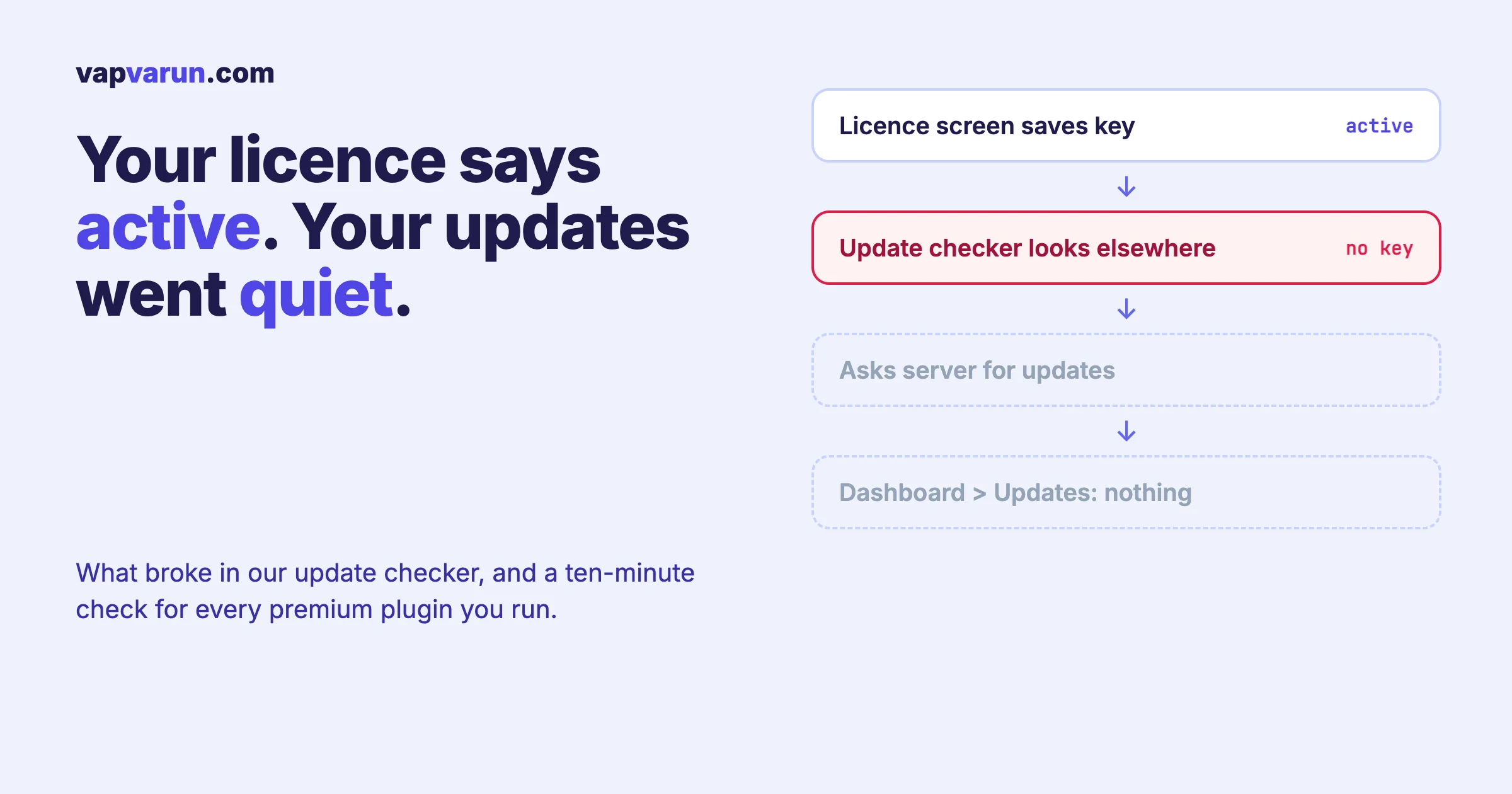
Premium WordPress plugins depend on a quiet promise: when the developer ships a fix, your site hears about it and offers the update in Dashboard > Updates. Most of the time nobody thinks about that promise until it breaks. In October 2026 it broke for two of our own plugins, WB Gamification and Learnomy Pro. Sites stopped being offered updates, and nothing on the site said so.
This post explains what went wrong, what we changed, what customers needed to do, and how to check whether any premium plugin on your own site has quietly stopped updating. It is written for site owners first. Developers who ship their own plugins will find a signposted section near the end on the patterns that stop this happening.
The short version
- What happened: the part of each plugin that checks for updates was looking for the licence key under a different name from the one the plugin saves it under. It found no key, so it asked for no updates, and WordPress showed nothing.
- WB Gamification 1.6.7 (15 October 2026) fixes this, so sites are offered WB Gamification updates in Dashboard > Updates again.
- Learnomy 2.1.3 (15 October 2026) fixes it for Learnomy Pro: sites with a Pro licence activated on the License tab are offered Pro updates again, because Learnomy copies the key to where the update checker reads it. Nobody has to enter the key again.
- The catch: a site cannot be told about an update by a checker that is not working. Sites still on WB Gamification 1.6.6 or older need to install 1.6.7 by hand once, from their account. After that, updates arrive normally again.
Why a broken update checker is so dangerous
Most software failures are loud. A page breaks, a payment fails, a customer emails. A broken update checker is silent. The site keeps running exactly as before. The dashboard simply does not show an update, and “no updates” looks identical to “you are already up to date”.
That silence has real costs:
- Fixes do not arrive. Every bug fix shipped after the break sits on our side while customers keep hitting the old bug.
- Security fixes do not arrive. This is the serious one. A security release only protects the sites that install it.
- Support gets harder. A customer reports a problem we fixed weeks ago, and neither side realises their site never received the fix.
- Trust erodes. From the customer’s view, the product just seems to have stopped improving.
That is why we treat “updates stopped reaching customers” as one of the most serious problems a product can have, more serious than most visible bugs.
How premium plugin updates work in WordPress
To understand the failure, it helps to know how premium updates reach a site. Plugins from the WordPress.org directory update through WordPress itself. Premium plugins sold elsewhere cannot use that channel, so each one carries a small update checker.
- When the site has saved a valid licence key, the update checker periodically asks the developer’s update server whether a newer version exists.
- It sends the licence key with that request, so the server knows the site is entitled to updates.
- If the server answers with a newer version, the checker adds it to the list WordPress already keeps, and it appears in Dashboard > Updates and on the Plugins screen like any other update.
- When the owner clicks update, WordPress downloads the new version using a link the server provides for that licence.
The whole chain depends on one detail: the update checker must find the licence key the owner saved. If it looks in the wrong place, it believes there is no licence, sends no request, and adds nothing. No error, no warning, just silence.
What went wrong in our plugins
In both products, the licence screen saved the key under one name, and the update checker looked for it under another. The licence screen showed the key as active, because it read its own saved value correctly. The update checker, reading a different name, found nothing.
So a site owner could open the licence tab, see their licence active and valid, and reasonably assume everything was fine. Meanwhile the update checker had stopped asking for updates. Two parts of the same product disagreed about where a single value lived, and nothing tied them together.
This kind of mismatch is easy to introduce. A setting gets renamed during a tidy-up, the licence screen is updated, and the update checker is not, or the other way round. Each piece works when tested alone. Only the full journey, from saving a key to seeing an update in the dashboard, shows the problem, and that journey is easy to skip because it needs a real newer version to exist before anything appears.
What we changed
WB Gamification 1.6.7
The release note says it plainly: sites are offered WB Gamification updates in Dashboard > Updates again, because the update checker was looking for the licence key under a different name than the one the plugin saves. The checker now reads the key where the plugin stores it.
Learnomy 2.1.3
For Learnomy Pro, the fix ships in Learnomy itself. Sites with a Learnomy Pro licence activated on the License tab are offered Pro updates again, because Learnomy now copies the key to where the update checker reads it. The owner does not need to enter the licence again; the key they already saved is carried across.
We chose to copy the key rather than ask customers to re-enter it on purpose. Asking every owner to repeat a step they already did correctly would have pushed our mistake onto them, and many would never see the request.
What customers need to do
The awkward truth about an update-checker fix is that it travels through the very channel that was broken. A site whose checker cannot see updates cannot see the update that fixes the checker.
- WB Gamification on 1.6.6 or older: download 1.6.7 from your account at wbcomdesigns.com and install it once, by uploading it in Plugins > Add New > Upload Plugin, or by replacing the plugin folder. After that, future updates appear in Dashboard > Updates as normal.
- Learnomy Pro: update Learnomy to 2.1.3. Once it is in place, Learnomy Pro updates are offered again with no key re-entry.
- Already updated? Nothing more to do. Updates will appear as they ship.
If you are not sure which version you run, the Plugins screen shows the version number under each plugin’s name.
How to check whether any premium plugin has stopped updating
Our problem is not unique. Any premium plugin can fall into the same trap, and most site owners never notice. A ten-minute check, once a quarter, catches it:
- List your premium plugins. Anything not installed from WordPress.org: page builders, add-ons, membership and course plugins, theme companions.
- Compare versions. For each one, note the version on your Plugins screen, then check the developer’s changelog or release notes for the latest version.
- Look for a gap with no update offered. If the developer has released newer versions and your dashboard has not offered them, the update checker is not working on your site.
- Check the licence. Open the plugin’s licence screen. An expired or deactivated licence is the most common reason updates stop, and the fix is to renew or reactivate.
- Force a fresh check. Dashboard > Updates has a “Check again” button. WordPress caches update information, so a fresh check rules out stale data.
- Still nothing? Install the latest version by hand from your account, then contact the developer. A good developer wants to know, because if your site is affected, others are too.
Checking many sites at once
If you look after more than a handful of sites, checking each dashboard by hand gets slow. WP-CLI can list every plugin’s installed version and whether WordPress knows of an update:
wp plugin list --fields=name,version,update,update_versionRun it on each site and compare the versions of your premium plugins with the developers’ latest releases. A premium plugin showing none under update while its developer has shipped newer versions is the pattern to look for. Management tools that report plugin versions across many sites do the same job from one screen.
Common reasons premium updates stop
| Cause | What you see | Fix |
|---|---|---|
| Licence expired | Licence screen says expired or inactive | Renew, then check for updates again |
| Licence activated for a different domain | Works on staging but not live, or the reverse | Deactivate on the old domain, activate on this one |
| Site cannot reach the update server | Firewall or host blocks outgoing requests | Ask your host to allow the developer’s update domain |
| Stale update cache | Update shows in the changelog but not on the site | Dashboard > Updates > Check again |
| Update checker bug (like ours) | Licence shows active, still no updates | Install the fixed version by hand once |
| Plugin renamed or folder changed | Two copies on the Plugins screen, or updates go to the wrong one | Keep one copy, in the expected folder |
If you look after many sites, this check belongs in your routine maintenance. Our post on how we update five live sites without breaking them covers the order we update in and the restore point we keep at each step.
The lesson for how we release
Fixing the two plugins was the easy part. The harder question is why a release check did not catch it. Code standards, automated tests and browser checks of changed features all passed, because each piece worked on its own. What none of them proved was the journey a customer actually depends on: activate a licence, then see the next version offered in the dashboard.
That points to three checks worth running on every premium plugin release, ours included:
- Test the update journey end to end. Install the previous version on a test site, activate a real licence, and confirm the new version is offered in Dashboard > Updates and installs from there. It is the only test that proves the whole chain, from saved key to installed update.
- Read the licence key from one place. When the licence screen and the update checker share one way of getting the key, a rename in one cannot silently break the other.
- Watch for silence. When a new version ships, active sites should start fetching it. A drop in update requests after a release is a warning sign worth looking for before customers notice.
The same idea runs through our wider testing approach. Our post on pre-production plugin testing at agency scale describes the stages every change passes before it reaches a live site.
Why this matters beyond two plugins
Customers do not buy a plugin version. They buy a product that keeps improving and stays safe. Updates are how that promise is delivered. When updates stop, the product a customer paid for slowly falls behind the one we are actually building, without either side noticing.
That is also why we explain this publicly instead of fixing it quietly. Owners who were affected deserve to know why their dashboard went quiet, what to do about it once, and what we changed so it does not happen again. And owners using anyone’s premium plugins can use the same check to make sure their own sites are not missing fixes.
For businesses that run a platform on several of our products, such as a community with courses, gamification and a member directory, keeping everything updated together is part of the maintenance we provide. Our team keeps the whole stack updated together and checks that each fix has actually landed, so the owner does not have to wonder.
What a good developer response looks like
Whether the plugin is ours or anyone else’s, owners deserve the same things when updates break:
- A plain explanation of what stopped working, in the release notes, not hidden in a support thread.
- The exact versions affected, so owners can tell in seconds whether their site is one of them.
- The least work possible for the owner. Carry saved settings across instead of asking for them again, and say clearly when a one-time manual install is unavoidable.
- A clear route to the fixed version outside the broken channel, such as a download from the customer’s account.
- A change to the process, not only the code, so the same class of mistake is caught next time.
If a developer you rely on goes quiet when you report missing updates, treat it as a signal about how the product will be looked after over the coming years. Updates are the product’s lifeline, and the way a developer handles a break in that lifeline says a lot.
For developers: making update checkers fail loudly
This section is for developers who ship premium plugins. Site owners can skip it.
The bug class here is a contract mismatch: one part of a product writes a value under one name, another reads it under a different name, and the gap is invisible. These patterns prevent it.
1. One accessor for the licence key
Never read the licence option directly in more than one place. Give the plugin a single function that returns the key, and have both the licence screen and the update checker call it.
// One place knows where the key lives.
function myplugin_get_licence_key(): string {
	return (string) get_option( 'myplugin_licence_key', '' );
}

// The licence screen and the update checker both call it.
$key = myplugin_get_licence_key();
If the option is ever renamed, there is one line to change, and both sides follow.
2. Migrate on rename, do not ask users to redo it
When a stored value must move, copy it on upgrade rather than asking users to enter it again. Run the copy once, on a version check, and leave the old value in place until the next major release so a rollback still works. This is the approach Learnomy 2.1.3 takes for the Pro key.
add_action( 'admin_init', function () {
	if ( get_option( 'myplugin_licence_migrated' ) ) {
		return;
	}
	$old = get_option( 'myplugin_old_licence_key', '' );
	if ( $old && ! get_option( 'myplugin_licence_key' ) ) {
		update_option( 'myplugin_licence_key', $old );
	}
	update_option( 'myplugin_licence_migrated', 1 );
} );
3. Make “no key” visible
An update checker that finds no key should not stay silent if the licence screen believes a licence is active. Surface the contradiction: an admin notice on the plugin’s own screens, or a line in Site Health. A disagreement between two parts of the product is a bug, and bugs should be loud.
4. Test the journey, not the parts
Unit tests of the licence screen and the checker each pass in isolation. The test that matters installs version N, activates a licence, publishes version N+1 to a staging update server, and asserts that WordPress lists N+1 in its update data. Automate it in your release pipeline so it runs every time, because it is exactly the test people skip by hand.
5. Watch update-request volume
Your update server already sees every check. Track how many distinct sites ask for updates each day, per product and version. A sudden fall after a release usually means the new version broke the checker, and you will see it days before the first support ticket.
A quarterly update-health checklist for site owners
- List every premium plugin and theme on the site.
- Note each installed version and compare it with the developer’s latest release.
- Confirm each licence is active, unexpired and assigned to this domain.
- Click “Check again” in Dashboard > Updates.
- Install any missing update on staging first, then live.
- Report any product that showed an active licence but offered no update.
- Write down the date, so the next check has something to compare against.
It takes a few minutes per site and closes one of the quietest risks in WordPress maintenance.
Free plugins update differently
Plugins installed from the WordPress.org directory do not use a licence key at all. WordPress itself checks the directory and offers their updates, so the problem in this post cannot happen to them in the same way. If a free plugin stops offering updates, the usual causes are a host blocking outgoing requests, a stale update cache, or a plugin that has been closed or removed from the directory. The same quarterly check catches all three, because it compares your installed version with the latest release wherever that release is published.
Many products, including several of ours, come as a free plugin plus a paid add-on. In that pairing the free part updates one way and the paid part another, so it is worth checking both. A site can be fully current on the free plugin while its paid add-on sits several versions behind.
Frequently asked questions
Why are my premium plugin updates not showing in WordPress?
The most common reasons are an expired or inactive licence, a licence activated for a different domain, a host blocking requests to the update server, a stale update cache, or a bug in the plugin’s update checker. Check the licence screen, click “Check again” in Dashboard > Updates, and compare your version with the developer’s release notes.
Do I need to re-enter my Learnomy Pro licence?
No. Learnomy 2.1.3 copies the key you already saved to where the update checker reads it, and Pro updates are offered again.
Why do I have to install WB Gamification 1.6.7 manually?
Because the fix is in the update checker itself. A site whose checker is not working cannot be told about the version that fixes it. One manual install of 1.6.7 restores normal updates from then on.
How do I know if my site was affected?
If your site ran WB Gamification 1.6.6 or older, or Learnomy Pro before Learnomy 2.1.3, and your dashboard did not offer recent updates while the licence showed active, it was affected. Updating as described above resolves it.
Was any data or licence affected?
No. The problem was only in how the update checker found the licence key. Licences, settings and site data were not changed.
How often should I check that premium updates are arriving?
Once a quarter is enough for most sites, plus whenever a developer announces a security release. Agencies managing many sites should make it part of their regular maintenance routine.