WP Fusion Is the Hidden Plumbing of Every Real WordPress Marketing Stack: Architecture Deep-Dive
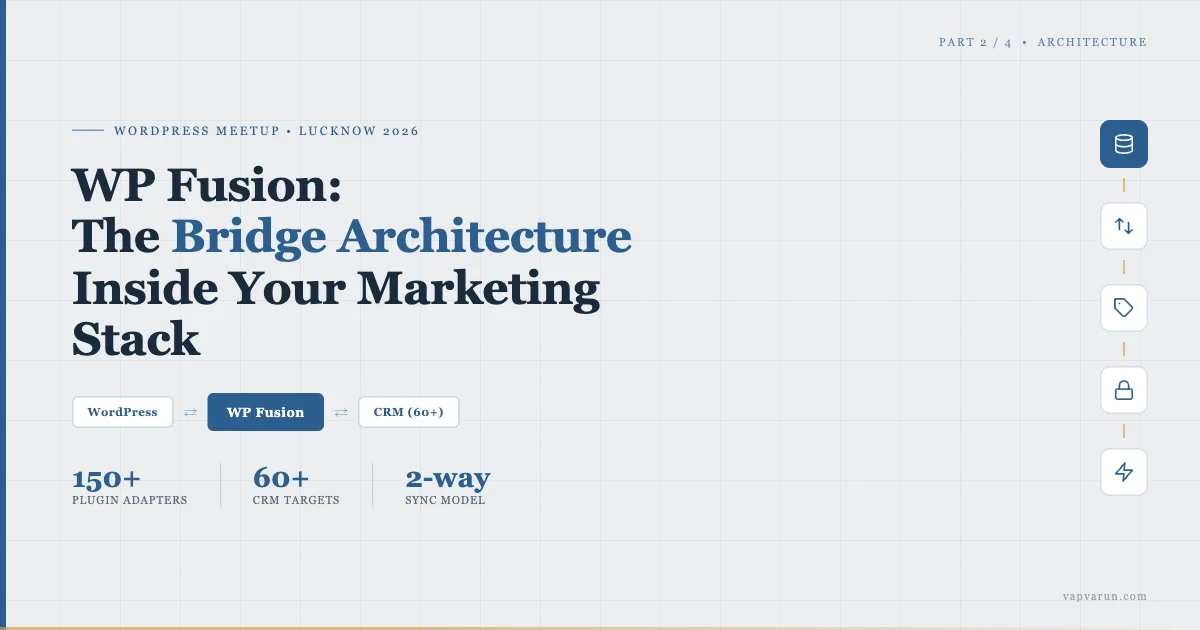
I gave a talk today at the WordPress Lucknow Meetup. One of the things I spent the most time on in the slide deck was a single question: how does data actually flow from your WordPress site into a CRM? Not in theory. Not “install WP Fusion and you’re done.” But the real plumbing: what fires, what maps, what syncs, what gates. This is the deeper read on that architecture.
If you missed Part 1, I explained why every WordPress site eventually hits the CRM bridge problem: you have 30 plugins firing events but no unified way to push those events to a single contact record. WP Fusion is the answer most serious WordPress shops land on. This post is the architecture post. By the end you’ll understand exactly how it works, why it’s built this way, and what it unlocks that custom integrations cannot.
The Core Premise: WordPress Knows More Than Your CRM
Here is something most CRM onboarding guides get backwards. They treat WordPress as a traffic source that sends leads to the CRM. The real model is the opposite. WordPress is the data-rich environment. Your CRM is the messaging and automation layer. Data flows primarily from WordPress into the CRM, not the other way around.
Think about what WordPress actually knows about a logged-in user. Their purchase history from WooCommerce. Which courses they’ve enrolled in on LearnDash. Which membership level they’re on in MemberPress. Which BuddyPress groups they’ve joined. What they submitted in a Gravity Form. When they last logged in. Their user meta fields. Their roles.
Your CRM knows their email address and whatever you told it. The richness gap is enormous. WP Fusion exists to close that gap by continuously syncing the WordPress-side richness into the CRM’s contact record, and then letting the CRM do what it’s good at: triggering sequences, sending emails, scoring leads, running automations based on that data.
The Bridge Architecture: Three Columns
The cleanest way to understand WP Fusion is to picture three columns. Left column: WordPress data sources. Right column: your CRM. Middle column: WP Fusion itself. Arrows run in both directions between each pair.
WORDPRESS SIDE          WP FUSION              CRM SIDE (1 of 60)
-----------------       -----------            ------------------
WooCommerce         <-->  apply_tags()    <-->  ActiveCampaign
User Registration   <-->  sync_user()    <-->  HubSpot
LearnDash           <-->  restrict()     <-->  FluentCRM
MemberPress         <-->  webhook_in     <-->  Klaviyo
Gravity Forms       <-->  field_map()    <-->  Zoho CRM
BuddyBoss           <-->  event_track()  <-->  Salesforce
User Meta                                     + 54 more
The WP Fusion middle column is not a thin pass-through. It is a full adapter layer with its own logic: field mapping, tag translation, webhook ingestion, access control enforcement, event queuing. Each of the four main function groups has a distinct job.
apply_tags() is the workhorse. When a WooCommerce order completes, WP Fusion calls apply_tags() on the contact, pushing the product name, order total category, and custom tags you configured. When a LearnDash lesson is completed, apply_tags() fires again. Every meaningful WordPress event maps to a tag operation.
sync_user() handles the field-level sync. WordPress user meta fields map to CRM contact fields. First name, last name, phone, custom profile fields from BuddyPress – all push to the CRM contact record on registration and on update. The field mapping UI in WP Fusion admin lets you drag-connect “WordPress field name” to “CRM field name” once, and it holds for all 60+ CRMs.
restrict() is the access control layer. This is the direction most people think of last but use constantly: the CRM tag comes back into WordPress and determines what the user can see. A tag called “premium-member” can be mapped to a post, a page, a course, a menu item, a widget. If the tag is not on the contact’s CRM record, WordPress returns a redirect or a lock screen. No tag = no access. This is how you gate content from the CRM side without touching WordPress code.
webhook_in is the bidirectional bridge. When something changes in your CRM – a tag is applied manually by a sales rep, a deal stage changes, an automation fires – a webhook comes back to WordPress. WP Fusion receives it, updates the user’s WordPress profile, applies or removes tags on the WordPress side, and potentially unlocks or revokes access to content. The sync runs both directions in real time.
Plugin Integrations: 150+ Adapters, One API
WP Fusion ships with adapters for over 150 WordPress plugins. Each adapter is a small PHP class that listens to the plugin’s hooks and translates them into WP Fusion’s universal API calls. The adapter for WooCommerce listens to woocommerce_order_status_changed, woocommerce_payment_complete, and woocommerce_checkout_order_processed among others. The adapter for LearnDash listens to learndash_lesson_completed, learndash_course_completed, and learndash_quiz_completed. The adapter for Gravity Forms listens to gform_after_submission.
From a developer standpoint, this is the elegant part. You do not write a custom store-to-HubSpot integration. You write code that calls wp_fusion()->tags->apply_tags() or wp_fusion()->user->push_user_meta(), and WP Fusion handles the translation to whichever CRM is configured in admin. Your plugin code is CRM-agnostic. Your client can switch from HubSpot to ActiveCampaign and your customizations keep working.
For the 150 built-in adapters, you configure not code. In the WP Fusion admin, each supported plugin gets its own settings panel. For WooCommerce you set: which tags to apply on purchase, which tags to apply per product, which tags to remove on refund. You save. That is the integration.
The Bidirectional Sync Model
Bidirectional sync sounds simple. In practice it has subtleties that matter.
WordPress to CRM (push): This is the primary direction. Every supported event in WordPress queues a sync operation. WP Fusion batches these intelligently to avoid hitting CRM API rate limits. A single user completing a WooCommerce purchase fires one sync with all the relevant field updates and tags bundled, not 12 separate API calls.
CRM to WordPress (pull and push): This runs via webhooks. You configure a webhook in your CRM (ActiveCampaign, HubSpot, FluentCRM all support this natively) pointing at a WP Fusion endpoint on your WordPress site. When the CRM fires the webhook, WP Fusion processes the payload, identifies the WordPress user by email, and applies the changes. If your CRM automation applies a “vip-customer” tag because the user crossed a spending threshold, that tag comes back to WordPress within seconds and can immediately unlock a VIP resource section.
Initial import: When you first install WP Fusion with an existing user base, there is an import tool. It pulls all existing contacts from your CRM and matches them to WordPress users by email, then syncs down any tags those contacts already have. This is how you avoid starting from scratch when you have a live CRM and a live WordPress site that have never been connected.
The E-commerce Events Pipeline
WooCommerce is where the WP Fusion architecture earns its keep for most agencies. Here is the actual event pipeline for a typical store:
Cart recovery: WooCommerce does not fire a native cart-recovery event, but WP Fusion integrates with recovery extensions that flag carts left without checkout. When a cart is flagged, WP Fusion applies a “cart-recovery” tag to the contact in the CRM. The CRM automation picks that up and fires your recovery sequence. If the user completes the purchase, WP Fusion removes the tag and the sequence stops.
Order complete: On payment confirmation, WP Fusion syncs order total, products purchased (as tags, one per product or per category), and order count. Your CRM then has a field it can filter on: “customers who purchased Product X in the last 90 days and have not been tagged with upsell-offer-A.”
Refund: A refund fires a remove-tags operation. The customer’s “product-A-purchased” tag is removed. If that tag was gating a course or a member area, access is revoked automatically. No manual intervention. No “we forgot to remove their access” support tickets.
Lifetime value: WP Fusion can sync the WooCommerce customer LTV field to a CRM custom field. This means your CRM can segment by total spend, not just by individual purchases. Automations like “customers with LTV above 10,000 INR get a loyalty discount email at 90 days post-purchase” become a 5-minute setup in your CRM without any custom code.
Recurring billing events: For recurring billing via WooCommerce, WP Fusion maps the full payment lifecycle. Active, cancelled, expired, pending cancellation each trigger separate tag operations. Your CRM automation knows exactly which lifecycle stage each subscriber is in and can run different retention sequences at each stage.
Tag-Based Content Gating in WordPress
The restrict() layer deserves its own section because it is the most underused part of WP Fusion and the one that changes how you build membership sites.
Traditional membership plugins gate content by assigning a role or a membership level directly in WordPress. The problem: your CRM does not know about WordPress membership levels. You end up with two systems that don’t talk. A user upgrades from Basic to Pro in your CRM automation sequence, but their WordPress access doesn’t change because the CRM can’t update the WordPress membership level directly.
With WP Fusion’s tag-based model, the CRM is the source of truth for access. You define which CRM tags unlock which WordPress content. The CRM applies and removes those tags. WordPress reacts. The flow looks like this:
- User purchases Pro Plan in WooCommerce
- WP Fusion applies tag “pro-member” to CRM contact
- CRM automation fires welcome sequence for pro members
- WordPress content tagged with “restrict: pro-member” is now visible to this user
- If the plan lapses, CRM removes “pro-member” tag via webhook
- WordPress access is revoked within seconds of the webhook firing
This model means your entire access control logic lives in the CRM. You can look at a contact record and immediately see what they have access to by reading their tags. You can grant access manually by applying a tag. You can revoke access by removing a tag. A customer service rep can handle access issues without touching WordPress admin.
The restrict() layer integrates with every major content type: pages, posts, custom post types, WooCommerce products, LearnDash courses and lessons, MemberPress membership levels, menu items, and widget areas. If WordPress can display it, WP Fusion can gate it.
The Install and Connect Flow
For anyone planning to implement this: the setup sequence matters. Here is how I walk through it with clients.
Step 1: Install WP Fusion on WordPress. It is a standard WordPress plugin, premium, installed via upload or their license-key auto-updater. No server-side configuration beyond a standard WordPress install.
Step 2: Connect to your CRM. In WP Fusion settings you select your CRM from the dropdown. The list covers 60+ options. You enter your API key or go through OAuth. WP Fusion tests the connection and pulls your list of tags and fields from the CRM. This usually takes under a minute.
Step 3: Configure the field map. The Contact Fields tab shows you all your WordPress user meta fields on the left and your CRM contact fields on the right. You connect them. I typically map: first_name, last_name, user_email, billing_phone, billing_country. Custom BuddyPress or user meta fields get mapped here too.
Step 4: Configure plugin integrations. Each supported plugin appears in the WP Fusion admin with its own tab. For WooCommerce you configure which tags to apply per product. For LearnDash you configure which tags to apply per course enrollment and completion. This is where you spend the most time, but it is configuration not code.
Step 5: Import existing users. Run the import tool to sync existing WordPress users to CRM contacts. WP Fusion matches by email and pushes the field data. Existing contacts that are already in the CRM get their fields updated; new ones are created.
Step 6: Set up webhooks in the CRM. For bidirectional sync you configure webhooks in your CRM to point back at your WP Fusion webhook endpoint. The endpoint URL is shown in WP Fusion settings. Different CRMs call these different things (webhooks, automations that call a URL, outbound integrations) but the setup pattern is the same across all of them.
The full setup for a standard WooCommerce + membership site takes 2-4 hours the first time. Subsequent clients go faster because you’re reusing the same tag naming conventions and field mappings.
Why Vendor-Neutral Architecture Matters to Agencies
I want to be direct about why this architecture matters from an agency perspective, because it took me longer to see it than it should have.
When we built custom CRM integrations for clients at Wbcom Designs, each one was a bespoke store-to-ActiveCampaign connector or a custom FluentCRM adapter. The code worked fine. But when Client A decided to migrate from ActiveCampaign to HubSpot 18 months later, we had a rebuild on our hands. The custom code assumed ActiveCampaign’s API, its field names, its tag system.
WP Fusion removes that rebuild scenario. The WordPress side of the integration talks to WP Fusion’s API. WP Fusion talks to the CRM. If the client changes CRM, you update one setting in WP admin, reconnect, remap a few fields, and the WordPress-side code is untouched. We’ve done this migration for three clients in the past year. None of them required custom development work on the WordPress side. Configuration only.
For agencies, this is a significant operational improvement. You can offer CRM-agnostic WordPress development. Your custom membership logic, your store tag setup, your LearnDash course gating – all of it survives a CRM migration. That’s a genuine value-add you can pitch to clients who are not sure which CRM they want to commit to long-term.
WP Fusion and the MCP Layer: What Comes Next
This architecture already works well as a static integration: WordPress pushes data, the CRM runs automations, webhooks come back. But it becomes genuinely powerful when you add an AI agent layer on top. That’s what Part 3 of this series covers.
The short version: if WP Fusion gives WordPress a universal CRM API, and MCP gives AI agents a universal tool API, then stacking the two means an AI agent can query and update any CRM through a single set of tool calls hosted on your WordPress site. An agent can ask “find all customers who purchased Plan A in March, aren’t tagged ‘upsold’, and start the loyalty sequence” – and execute that across 60 CRMs through one MCP server connected to WP Fusion.
Read the full architecture on how MCP plus WP Fusion connects Claude to any CRM in Part 3. The pattern builds directly on the bridge architecture we’ve covered here.
Pricing: What You’re Actually Buying
WP Fusion runs on one-time-fee licensing: $247 for the personal tier (1 site, core integrations), $347 for the Plus tier (1 site, all add-ons including e-commerce), and $540 for the pro tier (unlimited sites). These are lifetime licenses with a year of updates included and optional renewal at 50% after the first year.
For an agency doing client work, the unlimited sites tier amortizes quickly. The alternative is custom integration code per client per CRM, which costs more in developer time on the first project alone. I use the unlimited tier across all client projects at Wbcom Designs.
The pricing model also reflects the plugin’s value proposition. WP Fusion is infrastructure. You install it once per site and it runs quietly for years. The pricing matches that – you pay once for the foundation, not monthly for a SaaS seat you’re renting.
Practical Limits and Tradeoffs
WP Fusion is not the right choice in every situation. Here are the cases where I’d think twice.
Headless WordPress setups: If your WordPress instance is purely a backend API and your frontend is a decoupled React or Next.js app, WP Fusion’s access control layer (restrict()) does not work out of the box. It is designed for traditional WordPress rendering. You can still use the sync and tag layers, but the content gating has to be reimplemented in your frontend.
Non-WordPress CRMs as the source of truth: If your CRM team has built extensive automations that modify user data and you need those changes reflected in WordPress in near-real-time for thousands of users, the webhook-based bidirectional sync can lag under load. It works well for typical membership and e-commerce volumes but is not an enterprise-grade event streaming solution.
CRMs not on the supported list: 60+ covered CRMs is extensive, but if your client uses a niche industry CRM not on the list, WP Fusion has a developer API for custom integrations. It is documented and usable. But it is not zero-code.
For standard WordPress agency work – WooCommerce stores, membership sites, course platforms, BuddyPress communities – WP Fusion hits the target almost every time. I have not run into a client scenario in the last two years where the plugin was the wrong architectural choice for CRM integration.
The Architecture Summary
Pull this back to first principles. WP Fusion works because it solves a real structural problem: WordPress generates rich behavioral data across dozens of plugins, and CRMs need that data to run effective automations, but every CRM has a different API. Writing custom integrations per CRM does not scale. A standardized adapter layer that translates WordPress events into a universal tag-and-field system does scale.
The four core mechanisms – apply_tags(), sync_user(), restrict(), and webhook_in – cover the full lifecycle of a WordPress user’s relationship with your CRM. Events flow out of WordPress, data flows back in, and access control in WordPress responds to the CRM’s decisions in real time.
150+ plugin adapters mean you get this for every major WordPress plugin without writing integration code. The field mapping UI handles the data translation layer visually. Vendor-neutral design means your client can change CRM without your WordPress code changing.
If you are building serious WordPress marketing infrastructure and you haven’t evaluated WP Fusion, that is the gap this post was written to close. Start with the architecture. Understand the bridge before you start configuring it. The time you spend understanding how the four layers interact will save you hours of troubleshooting when something doesn’t sync the way you expected.
Next: Part 3 covers the MCP server layer – how to expose WP Fusion’s capabilities as MCP tools so Claude and other AI agents can operate your CRM through natural language commands.